
479 lines
17 KiB
Markdown
479 lines
17 KiB
Markdown
<img width="2346" height="1310" alt="MemoryBear Hero Banner" src="https://github.com/user-attachments/assets/77f3e31a-3a20-4f17-8d2d-d88d85acf19e" />
|
||
|
||
<div align="center">
|
||
|
||
# MemoryBear — 让 AI 拥有如同人类一样的记忆
|
||
|
||
**新一代 AI 记忆管理系统 · 感知 · 提炼 · 关联 · 遗忘**
|
||
|
||
[](LICENSE)
|
||
[](https://www.python.org/)
|
||
[](https://fastapi.tiangolo.com/)
|
||
[](https://neo4j.com/)
|
||
[](https://github.com/SuanmoSuanyangTechnology/MemoryBear/actions/workflows/sync-to-gitee.yml)
|
||
|
||
中文 | [English](./README.md)
|
||
|
||
[快速开始](#快速开始) · [安装教程](#安装教程) · [核心特性](#核心特性) · [架构总览](#架构总览) · [实验室指标](#实验室指标) · [论文](#论文)
|
||
|
||
</div>
|
||
|
||
---
|
||
|
||
## 项目简介
|
||
|
||
MemoryBear 是红熊 AI 自主研发的新一代 AI 记忆系统,核心突破在于跳出传统知识"静态存储"的局限,以生物大脑认知机制为原型,构建了具备**感知 → 提炼 → 关联 → 遗忘**全生命周期的智能知识处理体系。
|
||
|
||
与传统记忆管理工具将知识视为"待检索的静态数据"不同,MemoryBear 通过复刻大脑海马体的记忆编码、新皮层的知识固化及突触修剪的遗忘机制,让知识具备动态演化的"生命特征",将 AI 与用户的交互关系从**被动查询**升级为**主动辅助认知**。
|
||
|
||
## 论文
|
||
|
||
| 论文 | 描述 |
|
||
|------|------|
|
||
| 📄 [Memory Bear AI: A Breakthrough from Memory to Cognition](https://memorybear.ai/pdf/memoryBear) | MemoryBear 核心技术报告 |
|
||
| 📄 [Memory Bear AI Memory Science Engine for Multimodal Affective Intelligence](https://arxiv.org/abs/2603.22306) | 多模态情感智能记忆科学引擎技术报告 |
|
||
| 📄 [A-MBER: Affective Memory Benchmark for Emotion Recognition](https://arxiv.org/abs/2604.07017) | 情感记忆基准测试集 |
|
||
|
||
## 为什么需要 MemoryBear
|
||
|
||
### 单模型的知识遗忘
|
||
|
||
- **上下文窗口限制**:主流大模型上下文窗口通常为 8k–32k tokens,长对话中早期信息会被"挤出",导致后续回复脱离历史语境
|
||
- **静态知识库割裂**:训练数据是静态快照,无法实时吸收用户对话中的个性化信息(偏好、历史记录等)
|
||
- **注意力近因效应**:Transformer 自注意力对长距离依赖的捕捉能力随序列长度下降,过度关注最新输入而忽略早期关键信息
|
||
|
||
### 多 Agent 协作的记忆断层
|
||
|
||
- **数据孤岛**:不同 Agent(咨询、售后、推荐)各自维护独立记忆,用户需重复提供相同信息
|
||
- **对话状态不一致**:Agent 切换时,用户意图、历史问题标签传递不完整,引发服务断层
|
||
- **决策冲突**:基于局部记忆的 Agent 可能给出矛盾响应(如推荐用户过敏的产品)
|
||
|
||
### 语义歧义导致的理解偏差
|
||
|
||
- 行业术语、口语化表达、上下文指代未被准确编码,导致模型对记忆内容的语义解析失真
|
||
- 多语言混用场景中,跨语种记忆关联失效
|
||
|
||
<img width="2294" height="1154" alt="Why MemoryBear" src="https://github.com/user-attachments/assets/62453bc9-8422-4480-9645-e2abb57f0204" />
|
||
|
||
---
|
||
|
||
## 核心特性
|
||
|
||
<img width="2294" height="1154" alt="MemoryBear Core Features" src="https://github.com/user-attachments/assets/e90153d3-378f-47e8-a367-622121621566" />
|
||
|
||
### 记忆萃取引擎
|
||
|
||
从非结构化对话和文档中进行**语义级解析**,精准提取:
|
||
|
||
- **陈述句核心信息**:剥离冗余修饰,保留"主体-行为-对象"核心逻辑
|
||
- **三元组数据**:自动抽取实体关系(如 `MemoryBear → 核心功能 → 知识萃取`),为图谱存储提供基础数据单元
|
||
- **时序信息锚定**:自动提取并标记时间戳,支持时间维度的知识追溯
|
||
- **智能摘要生成**:支持自定义摘要长度(50–500 字)与侧重点,10 页技术文档 3 秒内生成精简摘要
|
||
|
||
### 图谱存储(Neo4j)
|
||
|
||
采用**图数据库优先**架构,对接 Neo4j,突破传统关系型数据库"关联弱、查询繁"的局限:
|
||
|
||
- 支持百万级知识实体及千万级关联关系
|
||
- 涵盖上下位、因果、时序、逻辑等 12 种核心关系类型
|
||
- 萃取的三元组直接同步至 Neo4j,自动构建初始知识图谱
|
||
- 支持图谱可视化交互,实现"机器构建 + 人工优化"协同管理
|
||
|
||
### 混合搜索
|
||
|
||
**关键词检索 + 语义向量检索**双引擎融合:
|
||
|
||
- 关键词检索基于 Elasticsearch,毫秒级精准定位结构化信息
|
||
- 语义向量检索通过 BERT 模型编码,识别同义词、近义词及隐含意图
|
||
- 先语义扩大候选范围,再关键词精准筛选,检索准确率达 **92%**,较单一方式提升 **35%**
|
||
|
||
### 记忆遗忘引擎
|
||
|
||
灵感源于生物大脑**突触修剪**机制,通过"记忆强度 + 时效"双维度模型实现知识动态衰减:
|
||
|
||
- 每条知识分配初始记忆强度,结合调用频率和关联活跃度实时更新
|
||
- 知识强度低于阈值后进入**休眠 → 衰减 → 清除**三阶段流程
|
||
- 系统冗余知识占比控制在 **8%** 以内,较无遗忘机制系统降低 **60%** 以上
|
||
|
||
### 自我反思引擎
|
||
|
||
每日定时触发自动反思流程,模拟人类"复盘总结"认知行为:
|
||
|
||
- **一致性校验**:检测关联知识间的逻辑冲突,标记可疑知识推送人工审核
|
||
- **价值评估**:统计调用频次和关联贡献度,高价值知识强化,低价值知识加速衰减
|
||
- **关联优化**:基于近期检索行为调整知识间关联权重,强化高频关联路径
|
||
|
||
### FastAPI 服务层
|
||
|
||
统一服务架构,暴露两套 API:
|
||
|
||
| API 类型 | 路径前缀 | 认证方式 | 用途 |
|
||
|----------|----------|----------|------|
|
||
| 管理端 API | `/api` | JWT | 系统配置、权限管理、日志查询 |
|
||
| 服务端 API | `/v1` | API Key | 知识萃取、图谱操作、搜索查询、遗忘控制 |
|
||
|
||
- 平均响应延迟低于 **50ms**,单实例支撑 **1000 QPS** 并发
|
||
- 自动生成 Swagger 文档,支持 Docker 容器化部署
|
||
- 兼容企业级微服务体系,可对接 CRM、OA、研发管理等业务系统
|
||
|
||
---
|
||
|
||
## 架构总览
|
||
|
||
<img src="https://github.com/user-attachments/assets/bc356ed3-9159-41c5-bd73-125a67e06ced" alt="MemoryBear System Architecture" width="100%"/>
|
||
|
||
**Celery 三队列异步架构:**
|
||
|
||
| 队列 | Worker 类型 | 并发 | 用途 |
|
||
|------|-------------|------|------|
|
||
| `memory_tasks` | threads | 100 | 记忆读写(asyncio 友好) |
|
||
| `document_tasks` | prefork | 4 | 文档解析(CPU 密集) |
|
||
| `periodic_tasks` | prefork | 2 | 定时任务、反思引擎 |
|
||
|
||
---
|
||
|
||
## 实验室指标
|
||
|
||
评估指标包括 F1 分数(F1)、BLEU-1(B1)以及 LLM-as-a-Judge 分数(J),数值越高表示性能越好。
|
||
|
||
MemoryBear 在四大任务类型的核心指标中,均优于行业内竞争对手 Mem0、Zep、LangMem 等现有方法:
|
||
|
||
<img width="2256" height="890" alt="Benchmark Results" src="https://github.com/user-attachments/assets/163ea5b5-b51d-4941-9f6c-7ee80977cdbc" />
|
||
|
||
**向量版本(非图谱)**:在保持高准确性的同时极大优化了检索效率,总体准确性明显高于现有最高全文检索方法(72.90 ± 0.19%),且在 Search Latency 和 Total Latency 的 p50/p95 上保持较低水平。
|
||
|
||
<img width="2248" height="498" alt="Vector Version Metrics" src="https://github.com/user-attachments/assets/5e5dae2c-1dde-4f69-88ca-95a9b665b5b2" />
|
||
|
||
**图谱版本**:通过集成知识图谱架构,将总体准确性推至新高度(**75.00 ± 0.20%**),在保持准确性的同时整体指标显著优于所有其他方法。
|
||
|
||
<img width="2238" height="342" alt="Graph Version Metrics" src="https://github.com/user-attachments/assets/b1eb1c05-da9b-4074-9249-7a9bbb40e9d2" />
|
||
|
||
---
|
||
|
||
## 快速开始
|
||
|
||
### Docker Compose 一键启动(推荐)
|
||
|
||
**前提条件**:已安装 [Docker Desktop](https://www.docker.com/products/docker-desktop/)。
|
||
|
||
```bash
|
||
# 1. 克隆项目
|
||
git clone https://github.com/SuanmoSuanyangTechnology/MemoryBear.git
|
||
cd MemoryBear/api
|
||
|
||
# 2. 启动基础服务(PostgreSQL / Neo4j / Redis / Elasticsearch)
|
||
# 请先通过 Docker Desktop 拉取并启动以下镜像(详见安装教程 3.2 节)
|
||
|
||
# 3. 配置环境变量
|
||
cp env.example .env
|
||
# 编辑 .env,填写数据库连接信息和 LLM API Key
|
||
|
||
# 4. 初始化数据库
|
||
pip install uv && uv sync
|
||
alembic upgrade head
|
||
|
||
# 5. 启动 API + Celery Workers + Beat 调度器
|
||
docker-compose up -d
|
||
|
||
# 6. 初始化系统,获取超级管理员账号
|
||
curl -X POST http://127.0.0.1:8002/api/setup
|
||
```
|
||
|
||
> **注意**:`docker-compose.yml` 包含 API 服务和 Celery Workers,基础服务(PostgreSQL、Neo4j、Redis、Elasticsearch)需要单独启动。
|
||
>
|
||
> **端口说明**:Docker Compose 部署默认端口为 `8002`,手动启动默认端口为 `8000`。下文安装教程以手动启动(`8000`)为例。
|
||
|
||
服务启动后访问:
|
||
- API 文档:http://localhost:8002/docs
|
||
- 管理后台:http://localhost:3000(启动前端后)
|
||
|
||
**默认管理员账号:**
|
||
- 账号:`admin@example.com`
|
||
- 密码:`admin_password`
|
||
|
||
### 手动启动
|
||
|
||
> 以下为精简命令,详细步骤请参考 [安装教程](#安装教程)。
|
||
|
||
```bash
|
||
# 后端
|
||
cd api
|
||
pip install uv && uv sync
|
||
alembic upgrade head
|
||
uv run -m app.main
|
||
|
||
# 前端(新终端)
|
||
cd web
|
||
npm install && npm run dev
|
||
```
|
||
|
||
---
|
||
|
||
## 安装教程
|
||
|
||
### 一、环境要求
|
||
|
||
| 组件 | 版本要求 | 用途 |
|
||
|------|----------|------|
|
||
| Python | 3.12+ | 后端运行环境 |
|
||
| Node.js | 20.19+ 或 22.12+ | 前端运行环境 |
|
||
| PostgreSQL | 13+ | 主数据库 |
|
||
| Neo4j | 4.4+ | 知识图谱存储 |
|
||
| Redis | 6.0+ | 缓存与消息队列 |
|
||
| Elasticsearch | 8.x | 混合搜索引擎 |
|
||
|
||
### 二、项目获取
|
||
|
||
```bash
|
||
git clone https://github.com/SuanmoSuanyangTechnology/MemoryBear.git
|
||
```
|
||
|
||
<img src="https://github.com/SuanmoSuanyangTechnology/MemoryBear/releases/download/assets-v1.0/assets__directory-structure.svg" alt="Directory Structure" width="100%"/>
|
||
|
||
### 三、后端 API 服务启动
|
||
|
||
#### 3.1 安装 Python 依赖
|
||
|
||
```bash
|
||
# 安装依赖管理工具 uv
|
||
pip install uv
|
||
|
||
# 切换到 API 目录
|
||
cd api
|
||
|
||
# 安装依赖
|
||
uv sync
|
||
|
||
# 激活虚拟环境
|
||
# Windows (PowerShell,在 api 目录下)
|
||
.venv\Scripts\Activate.ps1
|
||
# Windows (cmd,在 api 目录下)
|
||
.venv\Scripts\activate.bat
|
||
# macOS / Linux
|
||
source .venv/bin/activate
|
||
```
|
||
|
||
#### 3.2 安装基础服务(Docker 镜像)
|
||
|
||
使用 Docker Desktop 安装所需镜像:[下载 Docker Desktop](https://www.docker.com/products/docker-desktop/)
|
||
|
||
**PostgreSQL**
|
||
|
||
拉取镜像:search → select → pull
|
||
|
||
<img width="1280" height="731" alt="PostgreSQL Pull" src="https://github.com/user-attachments/assets/96272efe-50ca-4a32-9686-5f23bc3f6c93" />
|
||
|
||
创建容器:
|
||
|
||
<img width="1280" height="731" alt="PostgreSQL Container" src="https://github.com/user-attachments/assets/074ea9da-9a3d-401b-b14b-89b81e05487e" />
|
||
|
||
<img width="1280" height="731" alt="PostgreSQL Running" src="https://github.com/user-attachments/assets/a14744cd-9350-4a2f-87dd-6105b072487d" />
|
||
|
||
**Neo4j**
|
||
|
||
拉取镜像方式同上。创建容器时需映射两个关键端口,并设置初始密码:
|
||
- `7474`:Neo4j Browser
|
||
- `7687`:Bolt 协议
|
||
|
||
<img width="1280" height="731" alt="Neo4j Container" src="https://github.com/user-attachments/assets/881dca96-aec0-4d43-82d0-bb0402eadaf8" />
|
||
|
||
<img width="1280" height="731" alt="Neo4j Running" src="https://github.com/user-attachments/assets/87423c90-22e8-44a9-a00a-df5d4dce4909" />
|
||
|
||
**Redis**:同上步骤拉取并创建容器。
|
||
|
||
**Elasticsearch**
|
||
|
||
拉取 Elasticsearch 8.x 镜像并创建容器,映射端口 `9200`(HTTP API)和 `9300`(集群通信)。首次启动建议关闭安全认证以简化配置:
|
||
|
||
```bash
|
||
docker run -d --name elasticsearch \
|
||
-p 9200:9200 -p 9300:9300 \
|
||
-e "discovery.type=single-node" \
|
||
-e "xpack.security.enabled=false" \
|
||
elasticsearch:8.15.0
|
||
```
|
||
|
||
#### 3.3 配置环境变量
|
||
|
||
```bash
|
||
cp env.example .env
|
||
```
|
||
|
||
编辑 `.env` 填写以下核心配置:
|
||
|
||
```bash
|
||
# Neo4j 图数据库
|
||
NEO4J_URI=bolt://localhost:7687
|
||
NEO4J_USERNAME=neo4j
|
||
NEO4J_PASSWORD=your-password
|
||
|
||
# PostgreSQL 数据库
|
||
DB_HOST=127.0.0.1
|
||
DB_PORT=5432
|
||
DB_USER=postgres
|
||
DB_PASSWORD=your-password
|
||
DB_NAME=redbear-mem
|
||
|
||
# 首次启动设为 true,自动迁移数据库
|
||
DB_AUTO_UPGRADE=true
|
||
|
||
# Redis
|
||
REDIS_HOST=127.0.0.1
|
||
REDIS_PORT=6379
|
||
REDIS_DB=1
|
||
|
||
# Celery
|
||
REDIS_DB_CELERY_BROKER=1
|
||
REDIS_DB_CELERY_BACKEND=2
|
||
|
||
# Elasticsearch
|
||
ELASTICSEARCH_HOST=127.0.0.1
|
||
ELASTICSEARCH_PORT=9200
|
||
|
||
# JWT 密钥(生成方式:openssl rand -hex 32)
|
||
SECRET_KEY=your-secret-key-here
|
||
```
|
||
|
||
#### 3.4 初始化 PostgreSQL 数据库
|
||
|
||
确认 `alembic.ini` 中的数据库连接配置:
|
||
|
||
```ini
|
||
sqlalchemy.url = postgresql://用户名:密码@数据库地址:端口/数据库名
|
||
```
|
||
|
||
执行迁移,创建完整表结构:
|
||
|
||
```bash
|
||
alembic upgrade head
|
||
```
|
||
|
||
<img width="1076" height="341" alt="Alembic Migration" src="https://github.com/user-attachments/assets/6970a8e6-712b-4f49-937a-f5870a2d1a2a" />
|
||
|
||
<img width="1280" height="680" alt="Database Tables" src="https://github.com/user-attachments/assets/8bbec421-de0c-472b-a7ce-8b89cc1e2efd" />
|
||
|
||
#### 3.5 启动 API 服务
|
||
|
||
```bash
|
||
uv run -m app.main
|
||
```
|
||
|
||
访问 API 文档:http://localhost:8000/docs
|
||
|
||
<img width="1280" height="675" alt="API Docs" src="https://github.com/user-attachments/assets/6d1c71b7-9ee8-4f80-9bed-19c410d6e85f" />
|
||
|
||
#### 3.6 启动 Celery Worker(可选,用于异步任务)
|
||
|
||
```bash
|
||
# 记忆任务 Worker(线程池,支持高并发 asyncio)
|
||
celery -A app.celery_worker.celery_app worker --loglevel=info --pool=threads --concurrency=100 --queues=memory_tasks
|
||
|
||
# 文档解析 Worker(进程池,CPU 密集型)
|
||
celery -A app.celery_worker.celery_app worker --loglevel=info --pool=prefork --concurrency=4 --queues=document_tasks
|
||
|
||
# 定时任务 Worker(反思引擎等)
|
||
celery -A app.celery_worker.celery_app worker --loglevel=info --pool=prefork --concurrency=2 --queues=periodic_tasks
|
||
|
||
# Beat 调度器
|
||
celery -A app.celery_worker.celery_app beat --loglevel=info
|
||
```
|
||
|
||
### 四、前端 Web 应用启动
|
||
|
||
#### 4.1 安装依赖
|
||
|
||
```bash
|
||
cd web
|
||
npm install
|
||
```
|
||
|
||
#### 4.2 修改 API 代理配置
|
||
|
||
编辑 `web/vite.config.ts`:
|
||
|
||
```typescript
|
||
proxy: {
|
||
'/api': {
|
||
target: 'http://127.0.0.1:8000', // Windows 用 127.0.0.1,macOS 用 0.0.0.0
|
||
changeOrigin: true,
|
||
},
|
||
}
|
||
```
|
||
|
||
#### 4.3 启动前端服务
|
||
|
||
```bash
|
||
npm run dev
|
||
```
|
||
|
||
<img width="935" height="311" alt="Frontend Start" src="https://github.com/user-attachments/assets/8b08fc46-01d0-458b-ab4d-f5ac04bc2510" />
|
||
|
||
<img width="1280" height="652" alt="Frontend UI" src="https://github.com/user-attachments/assets/542dbee3-8cd4-4b16-a8e5-36f8d6153820" />
|
||
|
||
### 五、初始化系统
|
||
|
||
```bash
|
||
# 初始化数据库,获取超级管理员账号
|
||
curl -X POST http://127.0.0.1:8000/api/setup
|
||
```
|
||
|
||
**超级管理员账号:**
|
||
- 账号:`admin@example.com`
|
||
- 密码:`admin_password`
|
||
|
||
### 六、完整启动流程
|
||
|
||
```
|
||
Step 1 克隆项目
|
||
Step 2 启动基础服务(PostgreSQL / Neo4j / Redis / Elasticsearch)
|
||
Step 3 配置 .env 环境变量
|
||
Step 4 执行 alembic upgrade head 初始化数据库
|
||
Step 5 uv run -m app.main 启动后端 API
|
||
Step 6 npm run dev 启动前端
|
||
Step 7 curl -X POST http://127.0.0.1:8000/api/setup 初始化系统
|
||
Step 8 使用管理员账号登录前端页面
|
||
```
|
||
|
||
---
|
||
|
||
## 技术栈
|
||
|
||
| 层级 | 技术 |
|
||
|------|------|
|
||
| 后端框架 | FastAPI + Uvicorn |
|
||
| 异步任务 | Celery(三队列:memory / document / periodic) |
|
||
| 主数据库 | PostgreSQL 13+ |
|
||
| 图数据库 | Neo4j 4.4+ |
|
||
| 搜索引擎 | Elasticsearch 8.x(关键词 + 语义向量混合) |
|
||
| 缓存/队列 | Redis 6.0+ |
|
||
| ORM | SQLAlchemy 2.0 + Alembic |
|
||
| LLM 集成 | LangChain / OpenAI / DashScope / AWS Bedrock |
|
||
| MCP 集成 | fastmcp + langchain-mcp-adapters |
|
||
| 前端框架 | React 18 + TypeScript + Vite |
|
||
| UI 组件库 | Ant Design 5.x |
|
||
| 图可视化 | AntV X6 + ECharts + D3.js |
|
||
| 包管理 | uv(后端)/ npm(前端) |
|
||
|
||
---
|
||
|
||
## 许可证
|
||
|
||
本项目采用 [Apache License 2.0](LICENSE) 开源协议。
|
||
|
||
---
|
||
|
||
## 致谢与交流
|
||
|
||
- **问题反馈**:请提交 [Issue](https://github.com/SuanmoSuanyangTechnology/MemoryBear/issues)
|
||
- **贡献代码**:请阅读 [贡献指南](CONTRIBUTING.md),提交 [Pull Request](https://github.com/SuanmoSuanyangTechnology/MemoryBear/pulls) 前请先创建功能分支并遵循 Conventional Commits 格式
|
||
- **社区讨论**:[GitHub Discussions](https://github.com/SuanmoSuanyangTechnology/MemoryBear/discussions)
|
||
- **微信社群**:扫描下方二维码加入微信交流群
|
||
|
||

|
||
|
||
- **Star 历史**:
|
||
|
||
[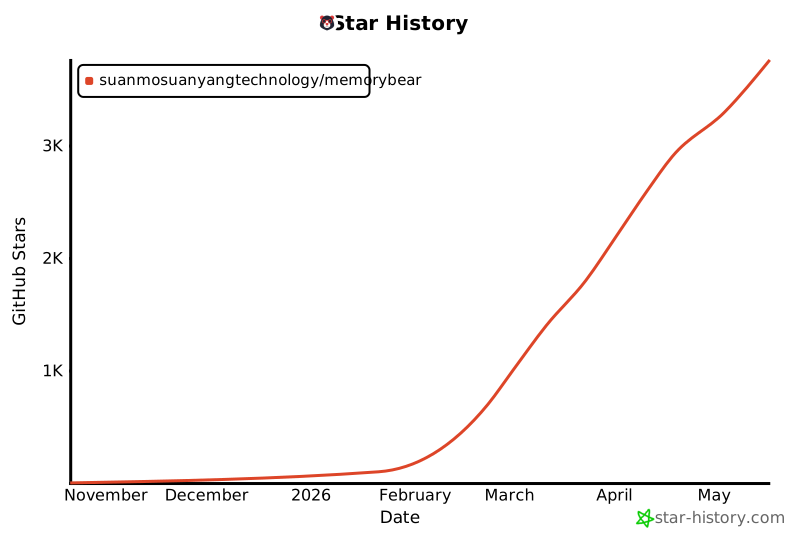](https://star-history.com/#SuanmoSuanyangTechnology/MemoryBear&Date)
|
||
|
||
- **联系我们**:tianyou_hubm@redbearai.com
|